

Agent Responses on this page are illustrative. Exact phrasing from your AI
model may vary depending on the model, settings, and repository context.
For the best experience, it is recommended to use the claude-4-sonnet model with the Chkk-Upgrade-Context-MCP Server.
Prerequisites
- Install Docker: Required to run the Chkk-Upgrade-Context-MCP Server.
- Install Cursor: Required to begin generating environment-aware pull requests.
Initialization of Chkk Upgrade Agent
1
Clone the Sample Chkk IaC repo
Run the following command to clone the sample Chkk IaC repo and open it in Cursor:
2
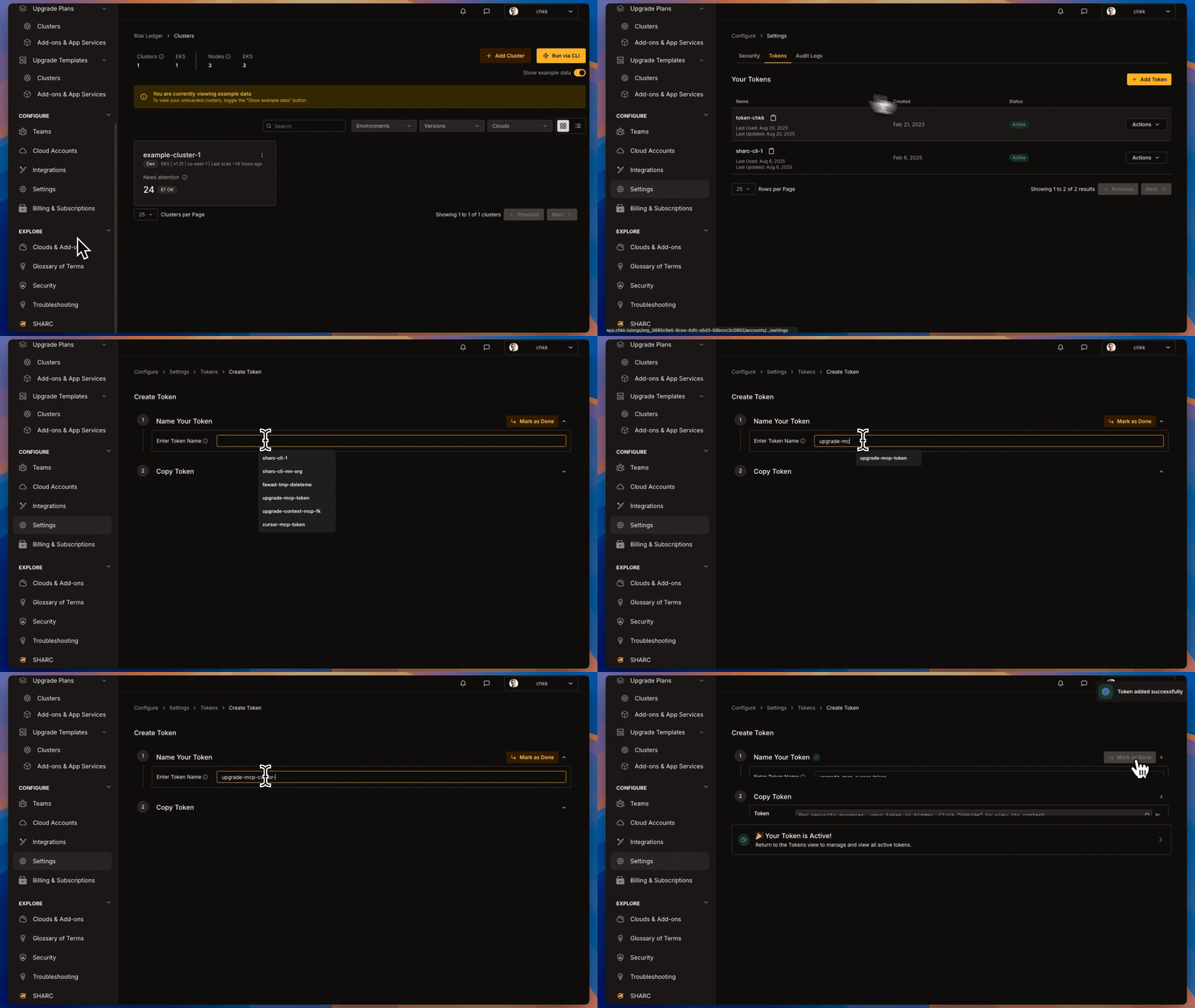
Retrieve your Chkk Access Token
- In the Chkk Dashboard, expand Configure on the left menu and click Settings.
- Select the Tokens tab. Here you’ll see a list of all your active tokens (if any), along with options to create new ones or revoke existing ones.
-
Click on the clipboard icon next to a token to copy it.
3
Install in Cursor via deeplink
Click the card below to install the Chkk Upgrade Context MCP Server in Cursor.
Add Chkk to Cursor
Click here to add Chkk to your Cursor
4
Configure your Chkk Access Token
Paste your Chkk Access Token in the 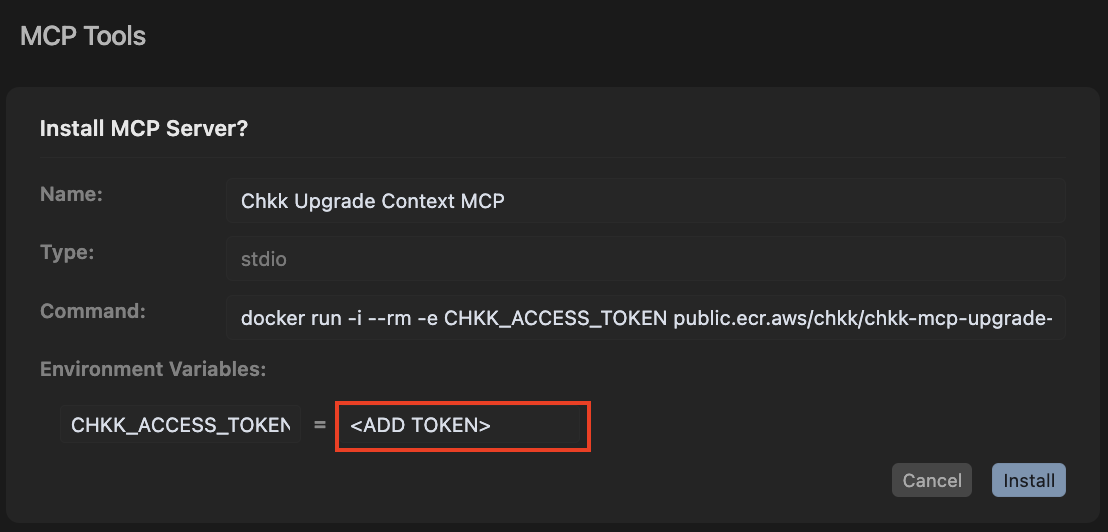
CHKK_ACCESS_TOKEN environment variable
in the MCP Tool Settings opened via the deeplink in the previous step.5
Verify Chkk Upgrade Context MCP Server is installed
Verify in MCP Tool Settings that Chkk Upgrade Context MCP Server is
successfully installed and enabled. 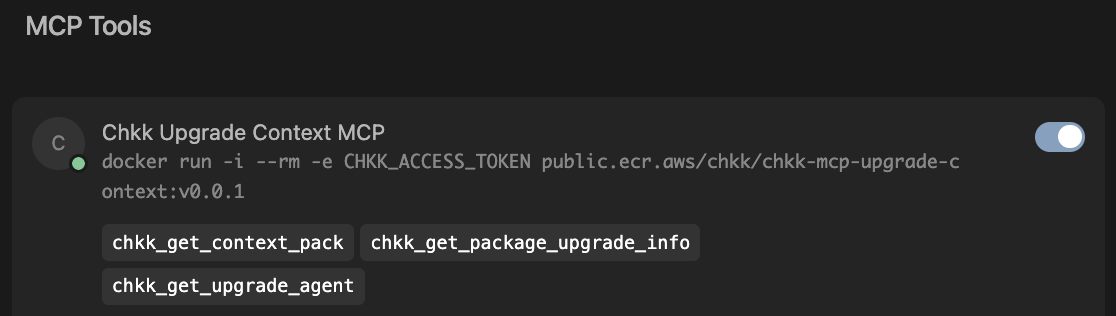
6
Open a new chat in Cursor
- In Cursor (top-left), click View → Command Palette.
- Make sure the chat is opened from your IaC repo root.
7
Load the Chkk Upgrade Agent
Paste and send the following Prompt in the Cursor chat:Agent Response:
Your opening prompt is flexible, but it must explicitly instruct the agent to fetch “addon-upgrade-agent” from Chkk MCP.
8
Provide the upgrade ID of the Example Upgrade Plan

Upgrade Agent Workflow
Connect your environment to Chkk and generate an Upgrade Plan. From the Cursor IDE, ask the Chkk Upgrade MCP to fetch Upgrade Context from that plan for the Cloud Native Project you’re about to change—say cert-manager or External Secrets Operator. The agent retrieves the recommended target version and rationale, detects your IaC pattern, identifies which files need to be updated, creates an environment-specific diff, and attaches the notes reviewers want (deprecations, critical fixes, notable features). Your IDE applies the diff and opens the PR, with optional preflight and postflight checks to keep code and running state aligned. The entire flow happens in your Cursor editor chat, end-to-end. Below is exactly what you’ll see, phase by phase, using a live example that upgrades cert-manager from v1.14.4 → v1.17.2 with a forked Helm chart.1
Kickoff & ID Handshake
What you do: You connect Chkk-Upgrade-Context-MCP server to Cursor. In Cursor Chat, you invoke the PR creation workflow (e.g., “Use the Chkk upgrade agent to apply the IaC changes. Start by asking for the upgrade ID.”).What you see: The agent asks you for the upgrade_id—a single natural key that ties your request to a Chkk Upgrade Plan (precomputed for your environment).Why it matters: The upgrade_id is how the agent fetches the precise context—including resources, subagents and diffs—for your cluster constraints, not “generic upstream.”
2
Environment Snapshot & State Setup
What you do: Provide the upgrade_id.What you see: The agent resolves plan metadata immediately (package name and from/to versions) and prepares a safe workspace:
- Confirms the package (e.g.,
cert-manager) and version span (1.14.4 → 1.17.2). - Creates a project-local scratchpad (e.g.,
.chkk/scratchpad/) which enables workflow tracing and checkpointing.
3
Context Retrieval (MCP Tool Call)
What you do: Nothing; the agent drives.What you see: A short progress line—“Now fetching the context”. The Context contains:
- The authoritative Upgrade Plan for
cert-manager. - Exact file artifacts to add and unified diff files to apply.
4
Plan Load & Sanity Summary
What you do: Nothing; the agent reads the plan.What you see: Compact, human-readable instructions from the plan:
- Upgrade Details:
cert-manager v1.14.4 → v1.17.2 - Reasons: e.g., “1.14.4 is EOL/Unsupported” and “1.14.4 incompatible with Kubernetes 1.32.”
- Inventory: Added: 2 files, Modified: 23 files, Deleted: 0 (your counts will vary by package).
5
Target Locator (Chart Finder)
What you do: Nothing, unless you have multiple candidates.What you see: The agent identifies your IaC repo pattern and locates the exact Helm chart root
for the package/version you’re on (e.g.,
.../helm/cert-manager/) by scanning for Chart.yaml where
name == cert-manager and version == 1.14.4 (exact, case-sensitive).Edge cases you might see:- Multiple matches: You’ll get a list of absolute paths and a prompt to choose one—no guessing.
- No match: The agent asks for an explicit absolute path (it won’t “best-effort” a wrong chart).
6
Preflight Checks
What you do: Review pass/fail lines.What you see: Two precise checks with ✅❌ outcomes:
- Chart Name & Version Match — confirms Chart.yaml matches the current package & version.
- Upgrade Plan Metadata Match — confirms the plan’s from/to are consistent with resolved metadata.
7
Reviewer Context, Upfront
What you do: Skim.What you see: The agent surfaces the “why”—the exact notes reviewers care about:
- Critical drivers (e.g., EOL, K8s version compatibility).
- Breaking changes (e.g., structured logging, stricter Helm schema validation, API removals).
- Security & bug fixes (e.g., DoS mitigations, renewal logic).
- Notable features (e.g., Gateway API support, metrics exposure).
8
Deterministic Apply Pass
What you do: Watch the live counter; no prompts needed.What you see: A strict, linear, and complete application of the plan:
- Full inventory printout: “Processing 25 total files: 2 added, 23 modified, 0 deleted”
-
Adds: Each source file from the context is copied to the correct relative target (e.g.,
templates/cainjector-service.yaml,templates/extras-objects.yaml) with immediate ✅ Added confirmations. -
Mods: Every single
*.diffis applied one-by-one with a visible sequence:
“Processing diff 1 of 23: Chart.yaml … ✅ Modified"
"Processing diff 2 of 23: README.md … ✅ Modified”
…through to the last template/value file. -
Deletions: If any exist, they’re backed up to
.bak, then removed with ✅ Deleted confirmations.
9
CRD Copy
What you do: Nothing.What you see: If the context includes CRDs, the agent copies them into the target CRD directory and prints the exact path used.Why it matters: Reviewers see CRD changes alongside template and values edits.
10
Update Custom Resources
What you do: Nothing.What you see: If the plan includes Custom Resources, they’re edited based on the changes in the CRD schema.Why it matters: Custom Resources are validated against their CRDs; migrating specs to the new schema
(handling renamed/deprecated fields and default changes) prevents admission failures,
reconcile churn, and subtle behavior drift during rollout.
11
Postflight Checks
What you do: Review.What you see: Two final gates:
- Chart version updated —
Chart.yaml version == to_version(e.g.,v1.17.2) → ✅❌ - All planned changes applied — match exactly and all items carry ✅ → ✅❌
12
Human-Readable Summary (PR-Ready)
What you do: Read once; this becomes your PR body.What you see: A concise, celebratory completion message (never “upgraded,” always “IaC updated”), plus reviewer-focused details:
- Completion: 🎉
cert-managerIaC Successfully Updated —v1.14.4 → v1.17.2. - Reasons (EOL, K8s compatibility) and most-critical notes (breaking changes, security fixes).
- Applied changes (counts + important files).
- CRD location (exact path).
- Next step: “Create a Pull Request to review and apply these IaC changes.”
Review and commit
1
Review workspace changes
- Open the Source Control panel (left sidebar) to inspect the diff.
- Verify
Chart.yaml,values.yaml, and any template updates.
2
Commit and open a pull request
Use your normal Git flow (Cursor’s Git UI or terminal) to commit on a branch and open a PR for review.
Chkk’s MCP server is read-only; your IDE/agent holds the pen and performs edits locally.
Chkk’s MCP server is read-only; your IDE/agent holds the pen and performs edits locally.