Usage
The provided steps also apply to Project Upgrade Templates.
1
Navigate to Cluster Upgrade Templates
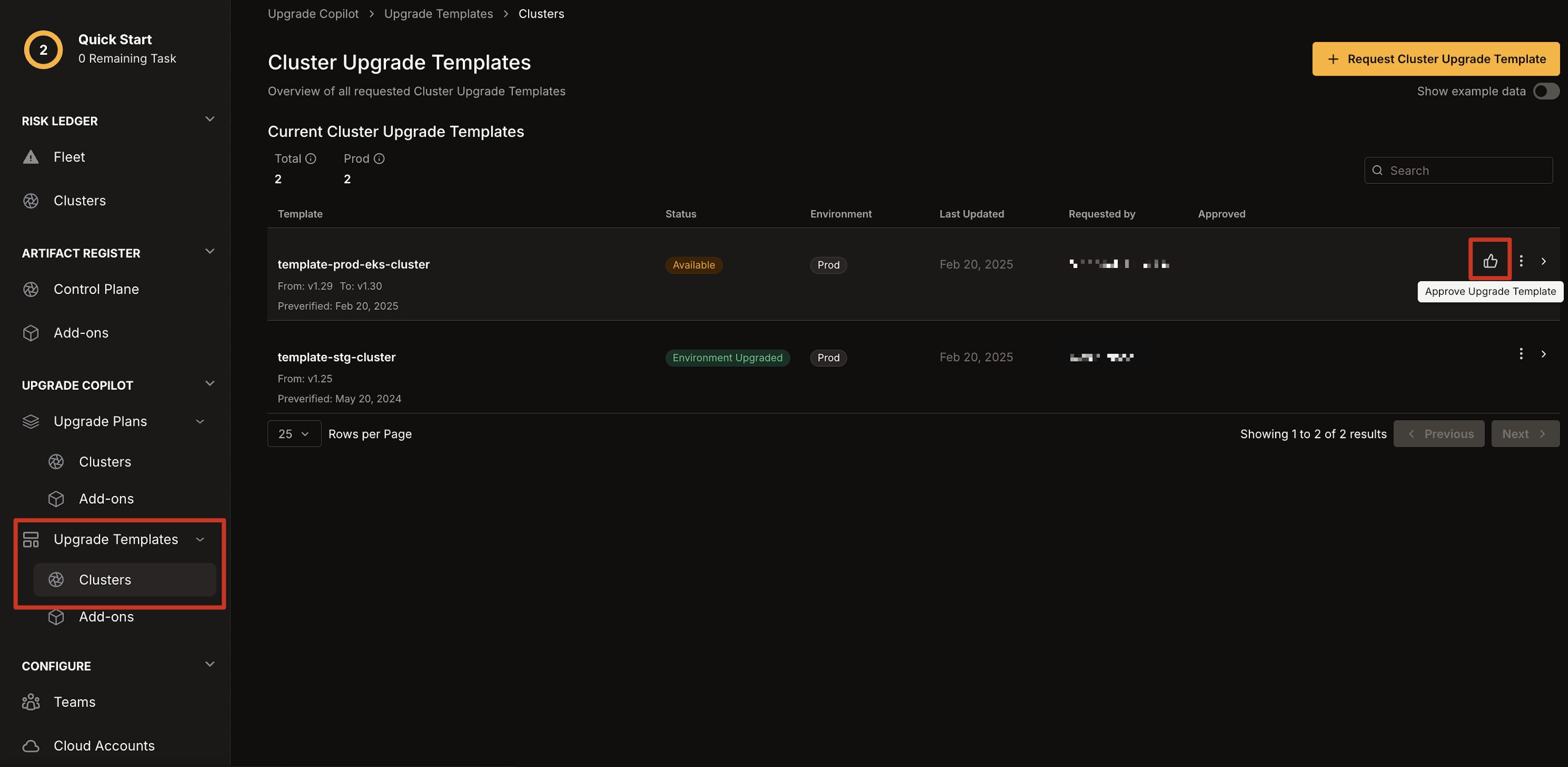
- In the left-hand column of the Chkk Dashboard, expand Upgrade Copilot.
-
Click Upgrade Templates, then select Clusters.
2
Approve the Template
- Navigate to the Upgrade Template you want to approve.
- Click the thumbs up icon to approve it.
3
Check Approval Status
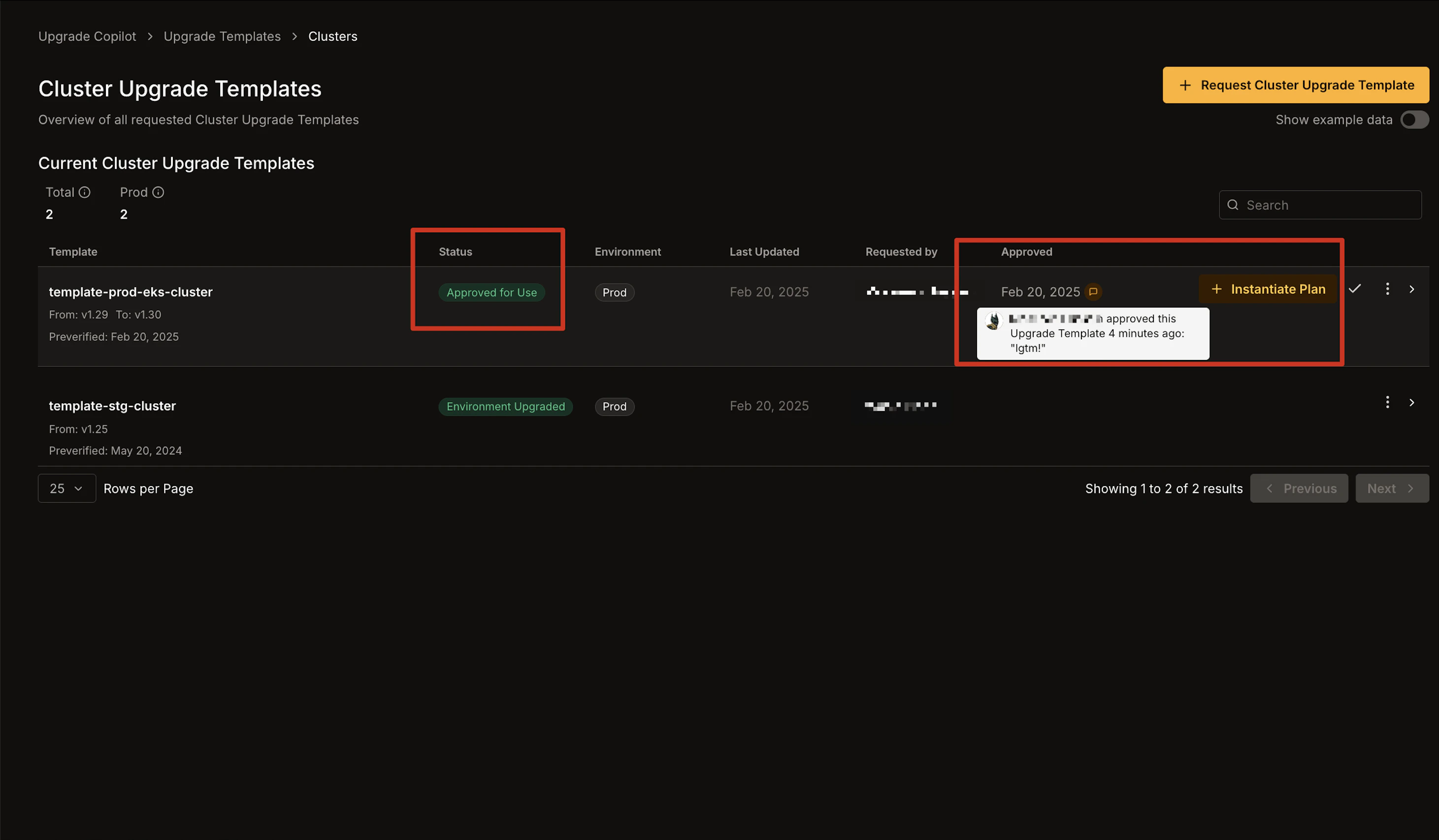
- Once approved, the upgrade template’s status changes to Approved for Use. 2. The approval date appears under the Approved column, along with any comments made by the approver.
4
Instantiate Upgrade Plans
-
After approval, a new CTA Button will appear, allowing you to Instantiate Upgrade Plans from the approved Upgrade Template.